Quick Code Generation
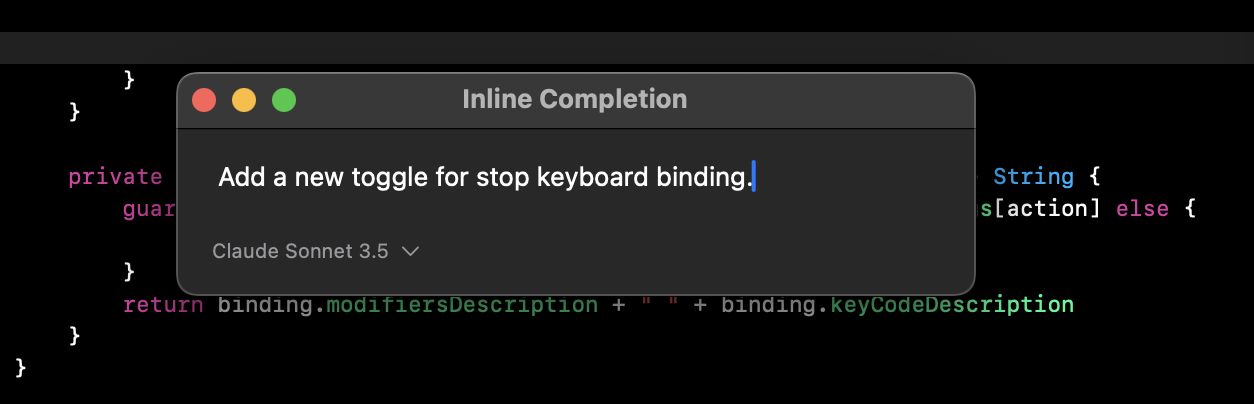
Alex Sidebar provides inline code suggestions and completions directly in Xcode to help you write code faster.Command + K
Trigger in-file suggestions to get AI-powered completions based on
your current code context.
Tab Completion
Get real-time suggestions as you type. Press Tab to accept the highlighted
suggestion.
Using Inline Completions
1
Trigger Suggestions
Position your cursor where you want to generate code (or select existing code) in Xcode and press Command + K
K**
The AI analyzes your current file context to provide relevant suggestions
2
Select Model
Choose from available AI models for completion: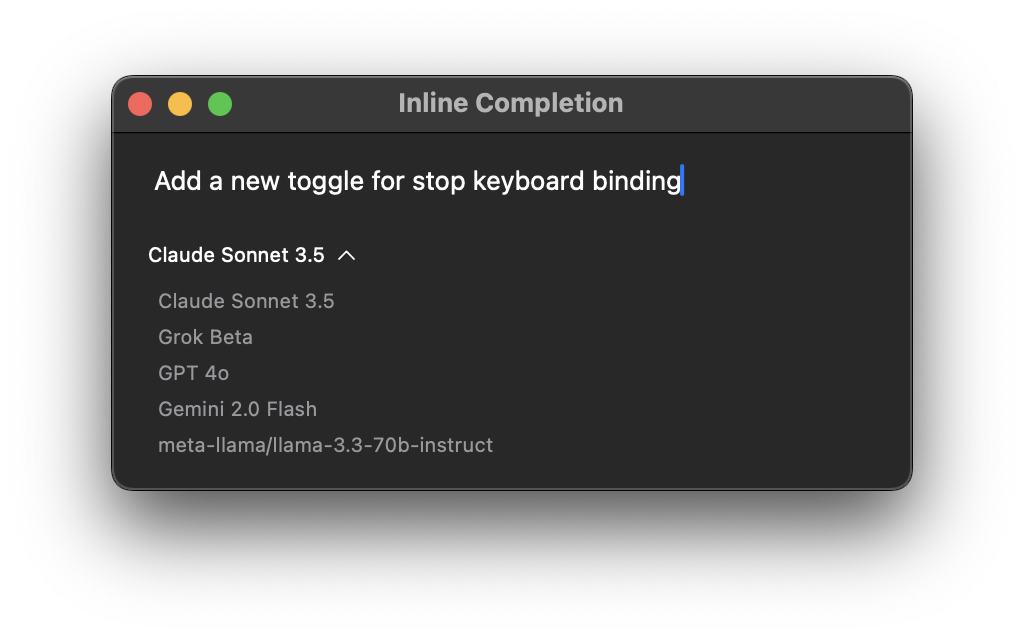
- Claude 3.5 Sonnet: Advanced model for complex completions
- GPT-4: Balanced performance and accuracy
- Gemini Flash 2.0: Fast, lightweight completions
You can add additional models through the Model Settings, including:
- Local models via Ollama integration
- Custom API-compatible models
- Other OpenAI-compatible endpoints
3
Review Options
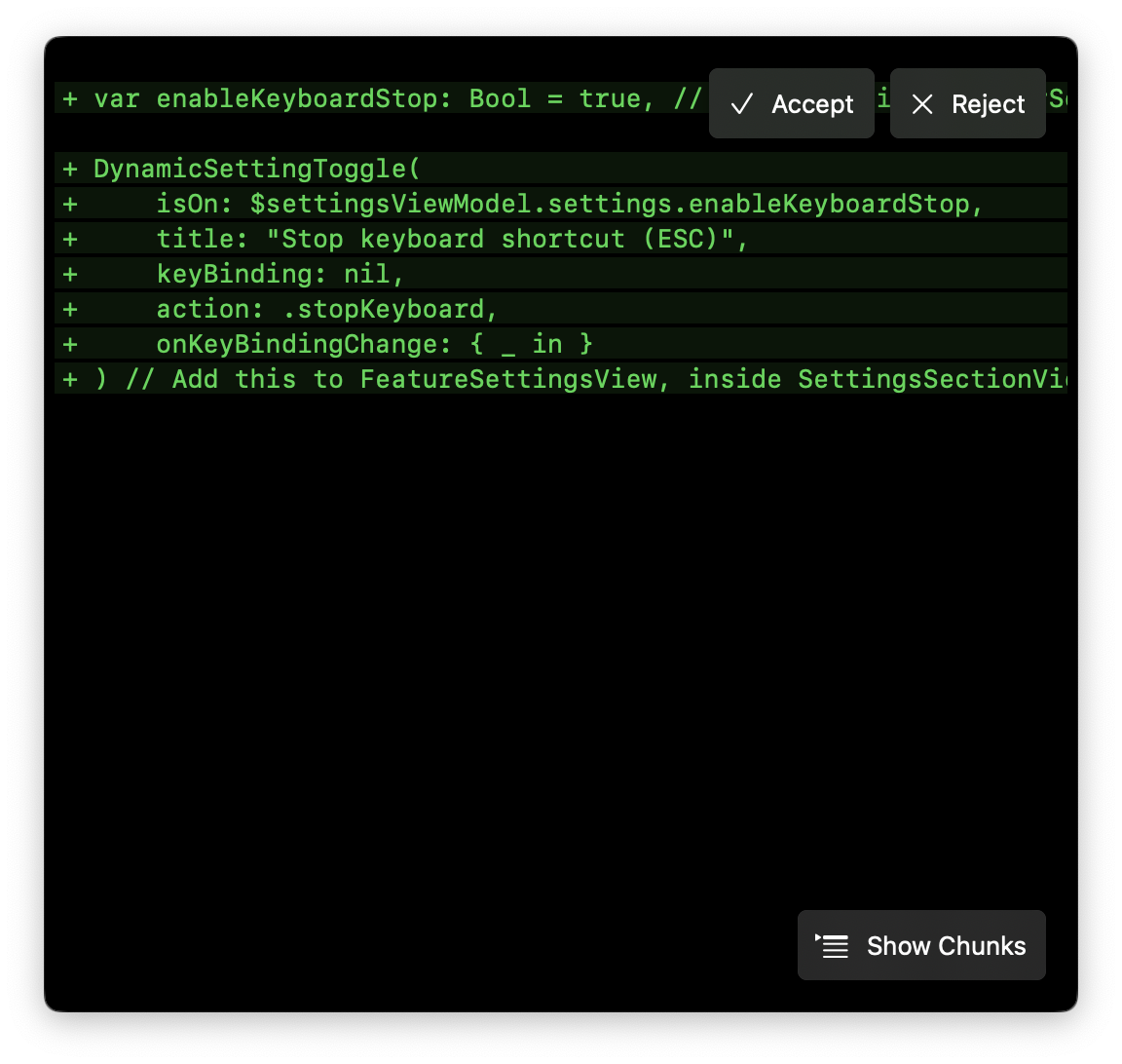
- Press Enter to accept the current suggestion
- Press Esc to dismiss suggestions
- Click retry button to generate new suggestions
Tab Completion
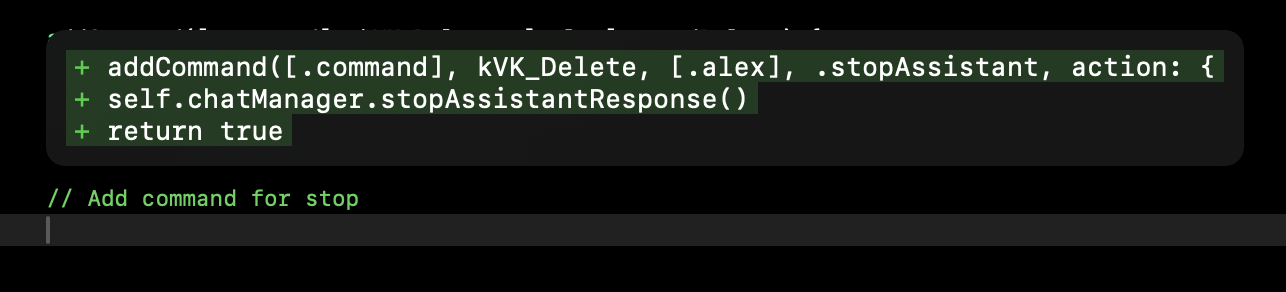
Real-time Suggestions
- Press Tab to accept suggestion
- Suggestions appear mid-sentence as you type
- Context-aware code suggestions
- Variable and method completions
Enabling Autocomplete
To configure autocomplete:- Open Settings
- Go to Features & Keybindings
- Find “Autocomplete Settings”
- Configure the available options:
- Enable Autocomplete: Turn the feature on/off
- Use Fast Autocomplete: Switch to an optimized model that provides ~50% faster completions, ideal for rapid development
- Inline completion: Configure the ⌘ + K shortcut
The base autocomplete model has been optimized for better performance with large files (>600 lines).
Best Practices
Model Selection
- Use Claude 3.5 Sonnet for complex logic
- Choose GPT-4 for balanced performance
- Select Gemini Flash 2.0 for quick completions
Completion Tips
- Use Command + K for larger completions
- Try different models if results aren’t ideal
- Use retry option for alternative suggestions
- Tab complete for quick suggestions
SwiftUI Code Examples
Here are some practical examples of how Alex Sidebar’s inline suggestions work with SwiftUI code: Start typing a basic SwiftUI view and let inline suggestions help:Property Wrappers
Property Wrappers
Get intelligent suggestions for SwiftUI property wrappers:
Custom Modifiers
Custom Modifiers
Get suggestions for custom view modifiers:
The examples above demonstrate common SwiftUI patterns where inline
suggestions are particularly helpful. As you type these patterns, Alex Sidebar
will suggest: - Property wrapper completions - View modifier chains - Common
SwiftUI view structures - Closure completions